
VueTV FAQ

As with life, sometimes things go on the fritz. Here are some basic tips and troubleshooting steps to get back to the entertainment.
Quick Tips
To log back in to the VueTV app you will need our Service ID: 0c6, your Username, and Password.
Additional login information can be found on our “Getting Started” guide here.
New Service ID – 0c6
If you see the “Application does not exist” popup:
Press the back button to remove the popup.
Highlight the text box, select OK, enter the new App/Service ID: 0c6, then select Submit.
How to log back into VueTV
From the Channel List (Tiles View):
Select the channel you want to favorite.
Press Enter once.
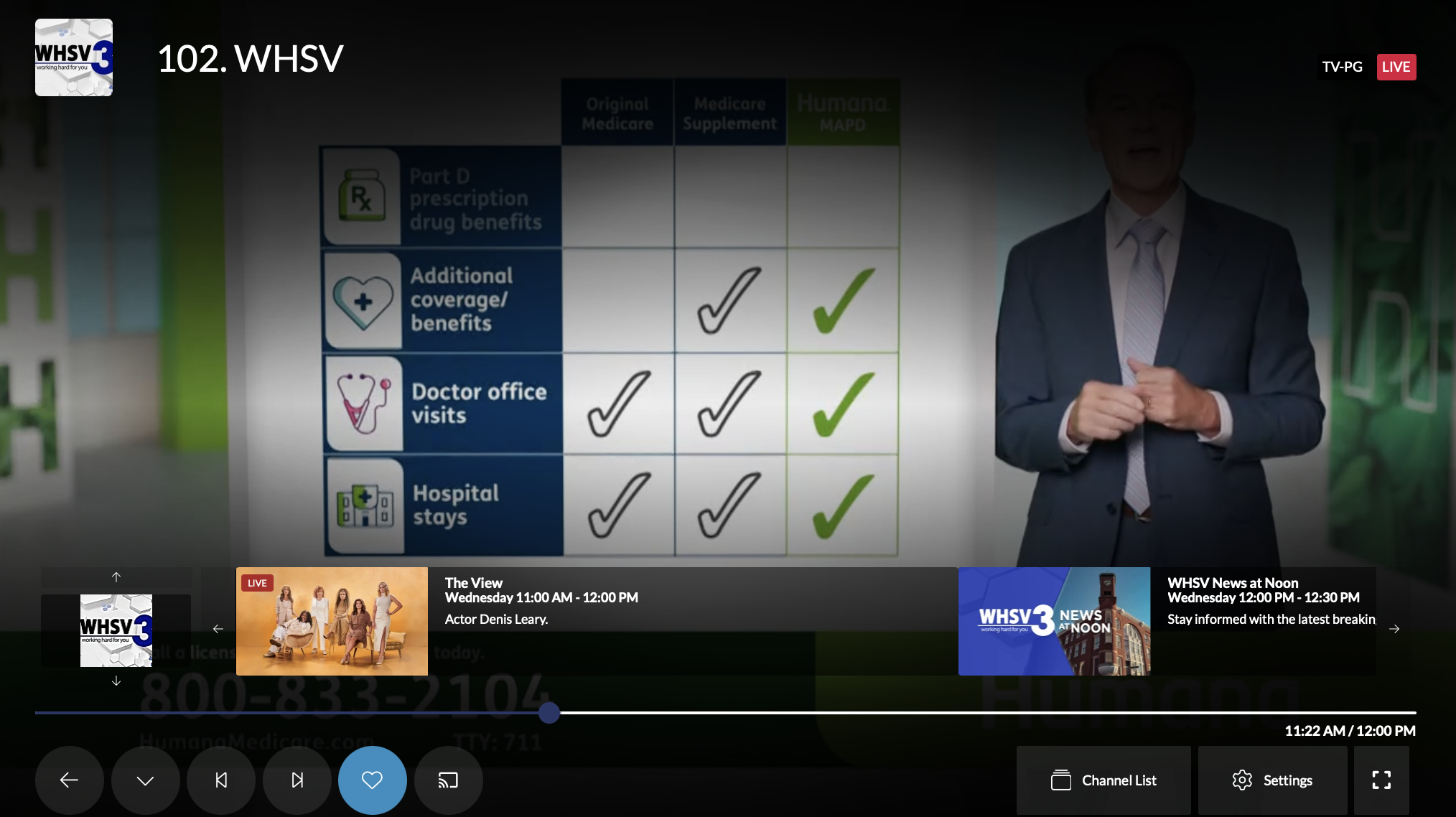
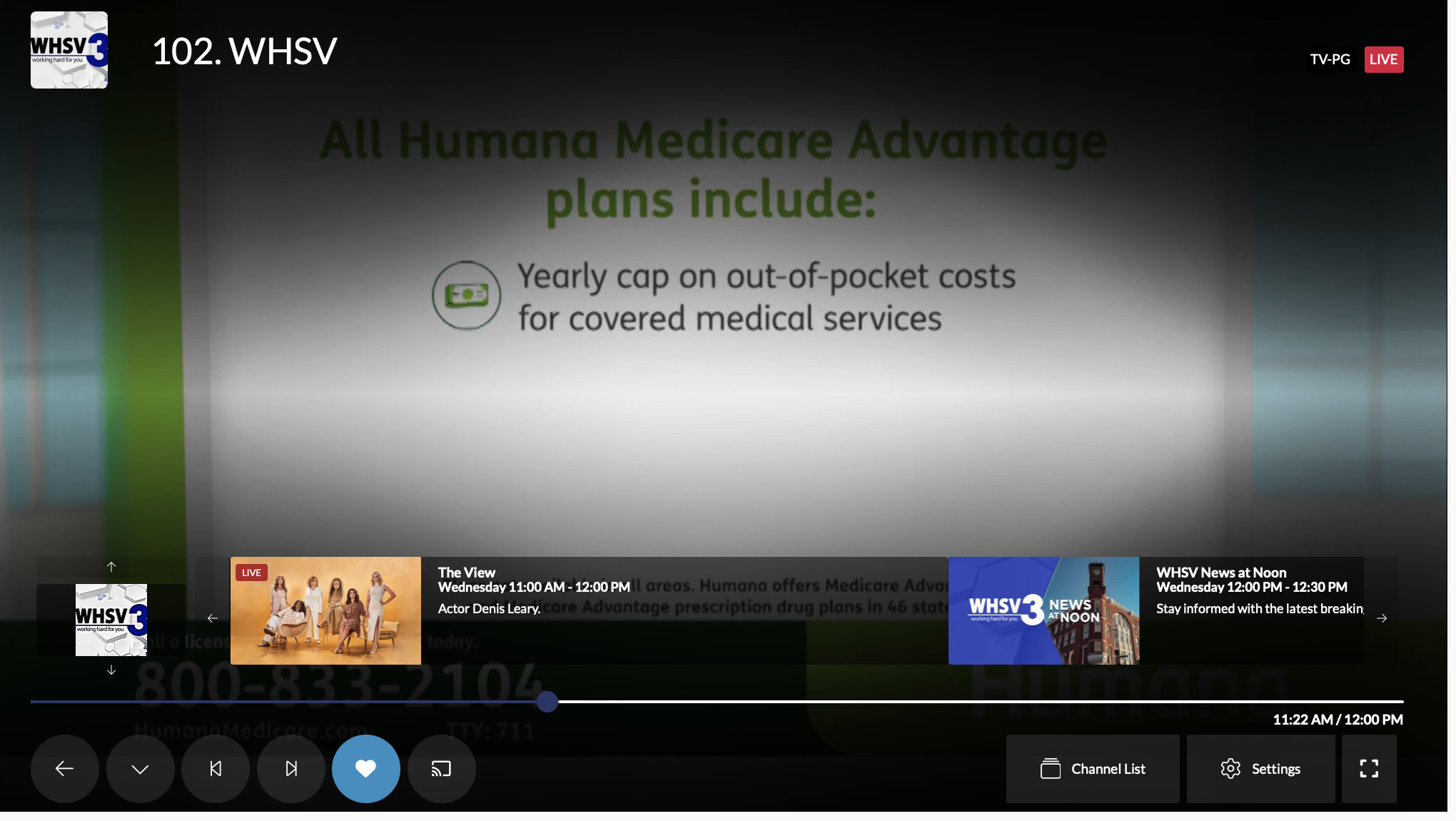
The heart icon will appear at the bottom left (previously top right).
Press Enter again to confirm. The heart changes from an outline to a filled heart.
The channel is now in your Favorites menu.
From the Channel Guide:
Navigate to the Channel Guide.
Select the channel, then choose the heart icon and press Enter once. The center of the heart icon will now be white.
Adding/Removing Channels from your Favorites
How do I navigate between my favorite channels and all channels?
There are two methods to change between your favorited channels and all available channels. This depends on if you use the “Channels” or the “TV Guide” options:
While on the “Channels” select screen, there is a bar at the top of the screen that allows you to sort, toggle view, and search. This bar also has the option to select “All Channels”, “Favorites”, “News”, and many more genres to narrow the channel list. You can select All Channels or Favorites from among these options.
While on the “TV Guide” screen, there is an option to search at the top. Beside that search feature is a drop-down menu that will allow you to change between “All Channels”, “Favorites”, “Cartoons”, and many more genres to narrow the channels that appear on the TV Guide.
How do I turn on/off subtitles?
To enable subtitles:
Tune to the channel you wish to view.
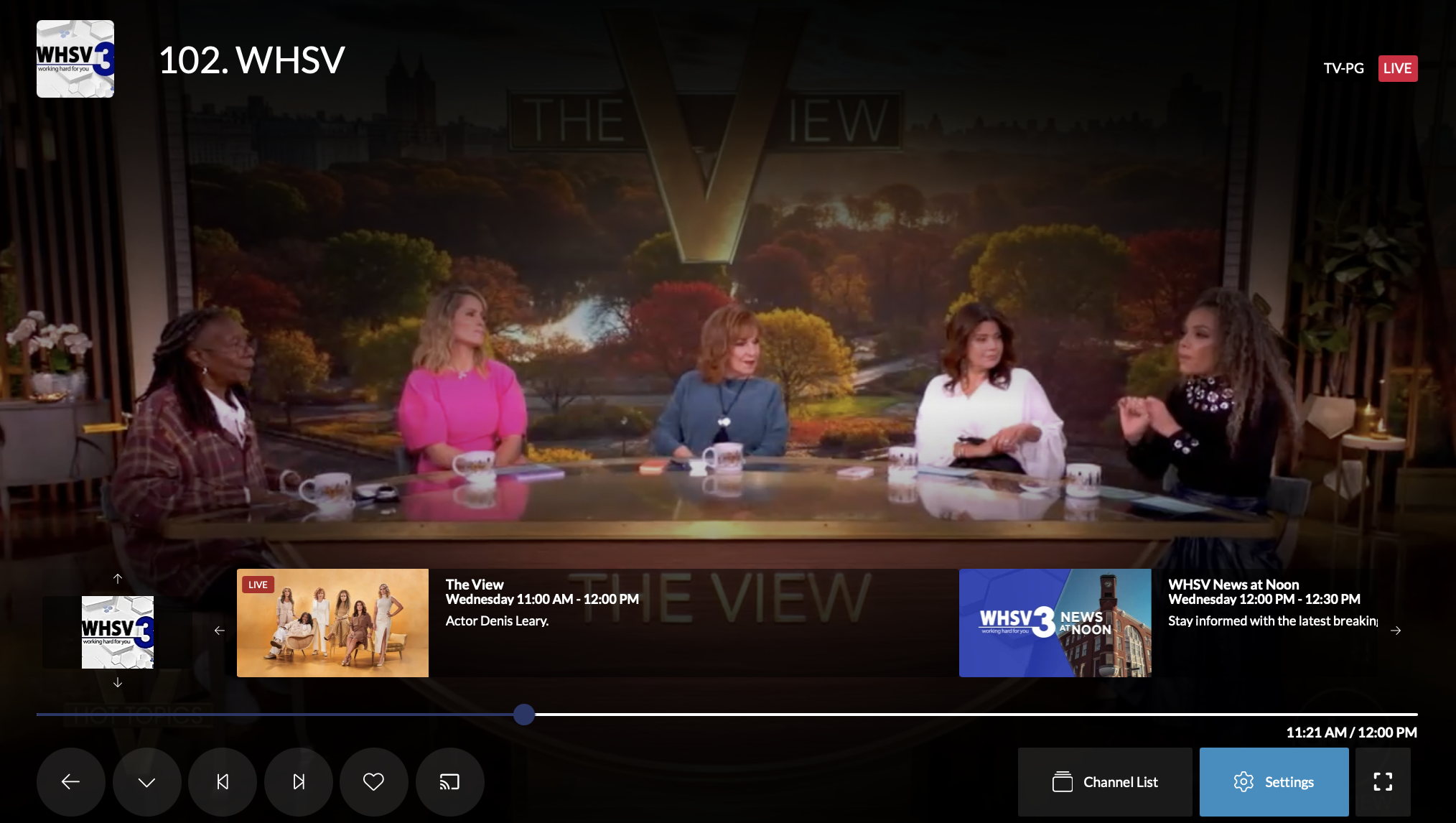
Press any button to bring up the channel overlay.
Move the cursor to the gear icon (bottom right of the screen) and press Enter.
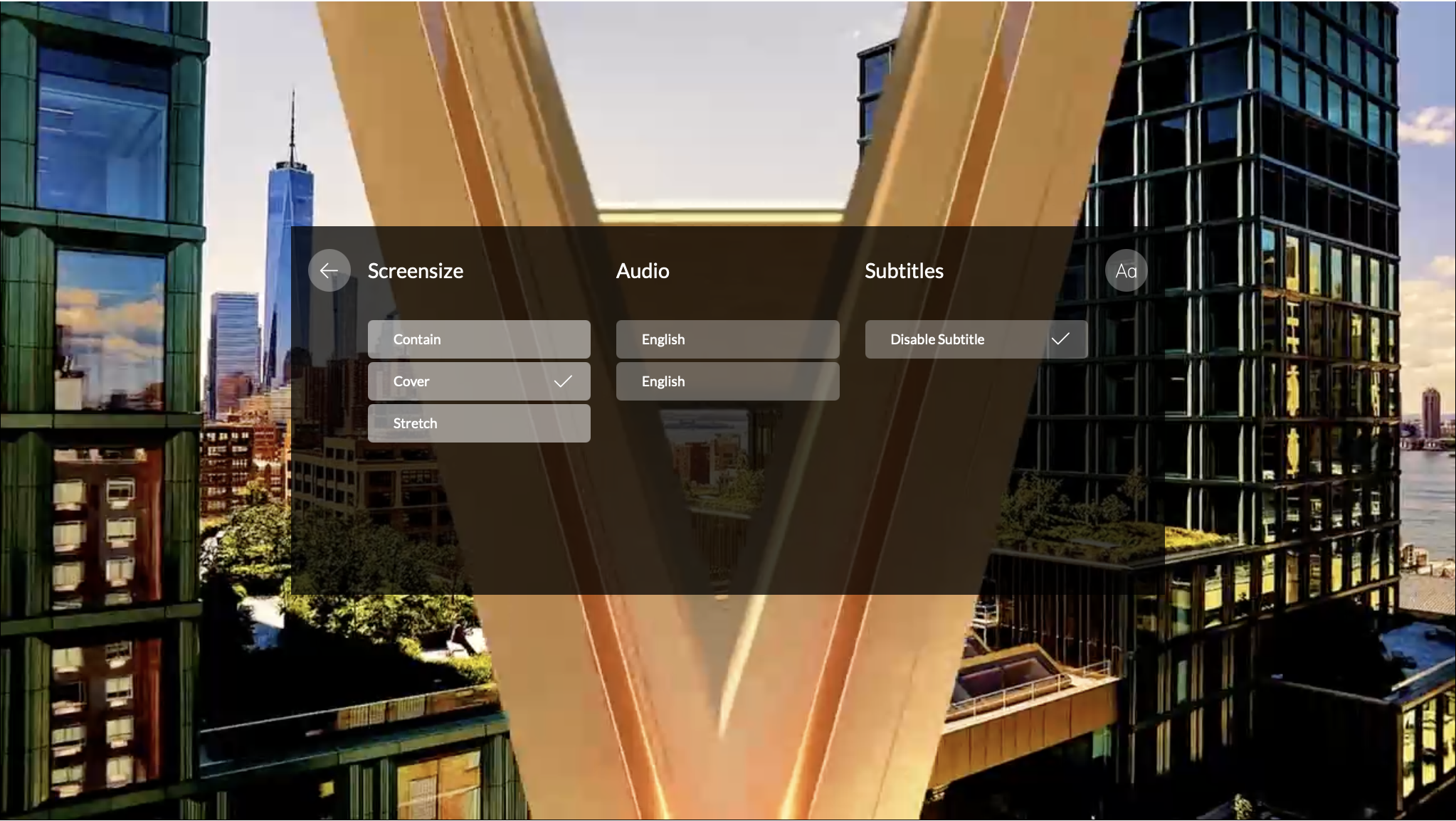
Navigate to the third column in the menu.
Look for “Disable Subtitles” with a check mark:
If this is the only option, subtitles are not available for this channel.
If you see an option for English, select it and press Enter.
The check mark should move from “Disable Subtitles” to your selected language.
Press Back to exit the menu.
The channel I was watching froze, or the application crashes while streaming: how do I troubleshoot this?
Channel freezing can be a frustrating but common problem in today’s digital world. Here are few things you can try to correct a frozen channel:
Try changing to a different channel, then turn back to the channel that was frozen
Close the VueTV app and relaunch the app
Check for app updates in the app store
Power cycle your Lingo provide set-top-box or streaming device
Uninstall the VueTV app and reinstall it
How do I uninstall and reinstall the VueTV app?
Uninstalling VueTV app
Press the Home button on your remote.
Navigate to the Settings icon in the top right corner
Select Apps
Locate and select the VueTV application
Select Uninstall
Reinstalling VueTV ap
Navigate to the device’s app store
Search for VueTV and follow the prompts for installation
Launch the VueTV app and log in with your credentials
To log back in to the VueTV app you will need our Service ID: 253, your Username, and Password.
How do I know if I’m signed into my Google Account?
If you are unsure if you are logged into your Google Account, a notification icon with a number will appear on the home screen next to the Settings icon (gear).
Press the HOME button on your remote.
If you are not signed into any Google Accounts, a notification icon will appear in the top right corner. Select the notification icon.
Select Sign into Google Accounts.
Enter your credentials and follow the screen prompts.
Do I need a set top box from MGW?
No. Although Lingo recommends our Amino set-top-box powered by Android TV, VueTV is compatible with the following platforms with our Bring Your Own Device option:
o Amazon Fire TV
o Apple TV and IOS
o Android TV and IOS
o LG TV App
o Roku TV
o Browser: https://www.mgwtelephone.com/vue-web
How do I change the language of the channel/broadcast?
Navigate to the Channel you want to change the language for. If additional languages are available for the channel you’re watching, press the up-arrow key. A small white box with “AD” in it will appear at the bottom right. By selecting “AD” at the bottom right the “Additional Dialog” options will appear, and you can set this to the available language(s) for the broadcast.
Common VueTV questions
Ensure Your Streaming Device is Up-to-date
-
MGW Provided Box: Android TV
Press the HOME button on your remote.
Select the gear icon in the top right corner to open settings.
Choose About, then System Update.
The device will check for updates to the Android Platform.
FYI: Ensure your device remains plugged in and you are signed into your Google account for automatic system updates.
-
MGW Vue TV App
Press the HOME button on your remote.
Navigate to the red tile that says Apps.
Select Get More Apps.
Navigate to the top right corner, click on your profile icon.
Select Manage Apps & Games.
Select Updates followed by Check for Updates.
FYI: To automatically receive updates, keep the device connected to a power source, connected to the internet, and a Google Account associated with your account be signed into on the device.
-
Roku
To Update your Roku Device:
Press the Home button your remote
Select Settings.
Select System.
Select System Update.
Select Check Now.
To Update an application:
Navigate to the app you wish to update.
Press *
Click Check for Updates.
Additional help can be found on Roku’s Support website
-
Amazon Fire TV
Your fire TV should update the device automatically. If you want to ensure you have the latest updates, please navigate to Settings, then AppStore. It will say on under Automatic Updates.
On Fire TV go to Settings
Select My Fire TV.
Select About, then Check for System update.
To make sure a particular application is up to date.
Navigate to the VUETV Application
If an update is available or needed, instead of an Open icon an Update one will appear.
Additional help can be found on Amazon’s Fire TV Support Site.
Don’t fret. We’ve got 24/7 Tech. Support just for you.